Deprecated: Function create_function() is deprecated in /home/wordpress3themes/public_html/wp-content/themes/minezine/functions/fe/widget-posts-list.php on line 9
admin, Author at WordPress 3 Themes

Author Archive: admin

How to Add a Progress Indicator for Long Posts in WordPress

**Excerpt: Understanding the Need for a Progress Indicator**

Enhancing the navigation experience for readers on a WordPress blog is crucial, particularly when dealing with long-form content. A progress indicator is a practical tool that informs readers of their completion status within an article. This guide provides a step-by-step process to add a progress indicator to your WordPress site.

**Installing a Plugin**

To easily implement a progress indicator, using a plugin is the most straightforward method. Start by selecting from popular options like **Reading Progressbar** and **Worth The Read**, which can be found on the [WordPress Plugin Repository](https://wordpress.org/plugins/).

**Step-by-Step Installation**:
1. Access the WordPress admin panel.
2. Navigate to **Plugins > Add New**.
3. Search for your desired plugin.
4. Click **Install Now** and then **Activate** once installation is complete.

Configure the plugin by visiting **Settings** and selecting your plugin’s name, where customization options like position, color, and size can be adjusted.

**Manual Implementation**

For users preferring not to use a plugin, manually adding a progress indicator with HTML, CSS, and JavaScript is possible. Insert specified HTML and CSS codes into your theme’s header and stylesheet files, and include a JavaScript script in the footer to create the progress effect.

**Testing the Progress Indicator**

Post-implementation, it’s crucial to test the indicator by visiting a long post on your site to confirm its functionality. Ensure it updates accurately as you scroll and make any necessary adjustments to colors or positioning.

**Considerations**

While a progress indicator can greatly enhance user experience, ensure it aligns with your website’s design and does not hinder usability, maintaining consistency across different devices and browsers.
How to Add a Progress Indicator for Long Posts in WordPress

**Enhancing User Engagement with a Progress Indicator in WordPress**

Creating long-form content in WordPress can be more engaging with the addition of a progress indicator. This visual element not only informs readers of their progress through the content but also serves as a motivational tool, encouraging them to continue to the end. Adding a progress bar can significantly improve user experience by allowing readers to estimate how much more they need to read.

**Methods to Implement a Progress Indicator**

There are two main methods to add a progress indicator to your WordPress posts:

1. **Using a Plugin:** You can quickly add a progress bar using a plugin like ‘Reading Position Indicator’. Just install and activate the plugin, configure the settings to customize the appearance and position of the progress bar, and save the changes.

2. **Manual Addition with Custom Code:** For a personalized touch, implement a progress indicator manually by creating a child theme to avoid losing changes during updates. Add necessary HTML, style it with CSS, and use JavaScript to update the progress dynamically.

By selecting the method that aligns with your needs and technical skills, you can create a more interactive and engaging reading experience for your audience.

How to Add a Progress Indicator for Long Posts in WordPress

To enhance user engagement on your WordPress blog, consider adding a progress indicator to your posts. This feature provides a visual cue of how much content remains, encouraging readers to stay longer on your page and potentially boosting your blog’s search engine ranking.

For an easy implementation without code editing, use a plugin like “Reading Time WP.” Install and activate the plugin through your WordPress dashboard, then navigate to the plugin’s settings to customize options such as color and style.

For those seeking more customization or wanting to avoid plugins, you can manually integrate a progress indicator by editing your theme’s `functions.php` file to enqueue JavaScript, creating a `progress-indicator.js` for the functionality, and adding necessary HTML and CSS.

By considering either approach, you can effectively improve the reading experience on your site.

How to Add a Progress Indicator for Long Posts in WordPress

In today’s digital landscape, improving user experience on a WordPress site is vital. One effective strategy involves adding a progress indicator for lengthy posts, which aids readers by showing how much they’ve read and what’s left, thereby boosting engagement and satisfaction. A progress indicator enhances user experience by offering a visual cue that encourages readers to complete longer articles and reduces bounce rates by informing users of their reading progress.

Installing a progress indicator can be easily achieved through a WordPress plugin, providing a no-code solution to enhance your site’s functionality. Key steps include selecting a reliable plugin, such as Reading Position Indicator or WP Progress Bar, followed by installation and activation via the WordPress admin dashboard. Once installed, configuring the plugin settings allows for customization of the indicator’s appearance and behavior to fit your site.

For those comfortable with coding, custom CSS provides an avenue for deeper customization of the progress indicator. Adjusting CSS properties like position and background color enables a tailored fit with your site’s design. Incorporating a progress indicator not only enhances engagement but also improves overall user satisfaction, making it a worthwhile addition to any WordPress blog.

How to Add a Progress Indicator for Long Posts in WordPress

As a WordPress blogger, keeping readers engaged with lengthy posts can be a challenge. A progress indicator can help by informing readers of their location within an article, enhancing the reading experience. Using a plugin like the “Reading Progress Bar” makes adding this feature simple. Install the plugin, activate it, and customize its settings for your site. For a more hands-on approach, those comfortable with coding can manually embed a progress indicator using JavaScript and CSS, providing greater flexibility and control. By incorporating this feature, you improve article readability and keep audiences engaged.

How to Create Password-Protected Pages in WordPress

How to Create Password-Protected Pages in WordPress

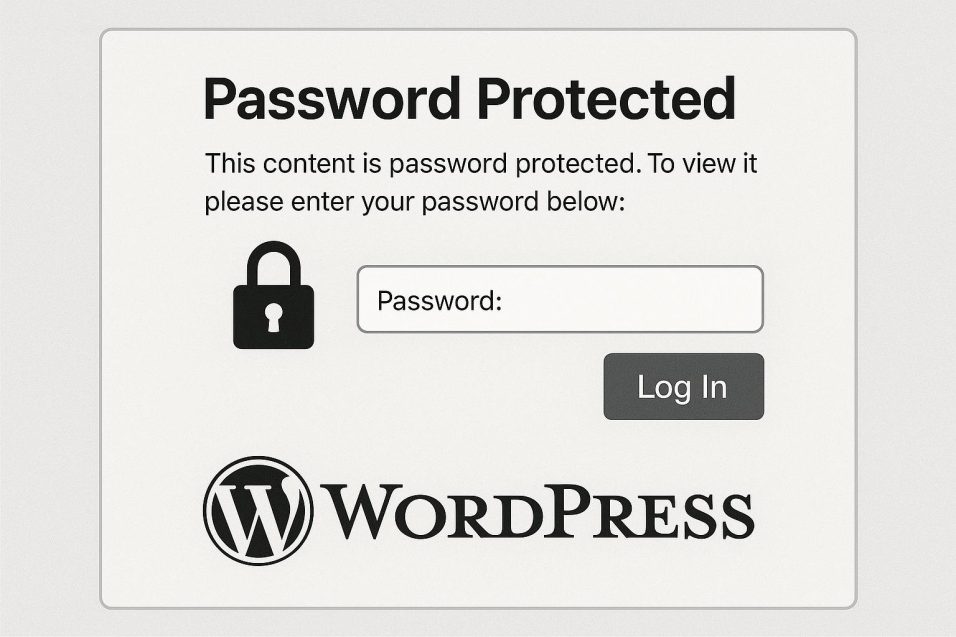
Creating password-protected pages in WordPress is a simple process that enhances control over access to specific content, ideal for exclusive or sensitive information. WordPress’s built-in functionality allows this without extra plugins.

**Steps to Create a Password-Protected Page:**

1. **Access the WordPress Dashboard:** Log in at *yourwebsite.com/wp-admin* to manage your website.

2. **Create or Edit a Page:** Go to the **Pages** section. Choose **Add New** for a new page or edit an existing one.

3. **Set Password Protection:** In the page editor, find the **Publish** box. Under **Visibility**, choose **Edit**, select **Password Protected**, and enter a secure password.

**Best Practices:**

– **Use Strong Passwords:** Ensure passwords are robust and unique, combining letters, numbers, and symbols for security.

– **Communicate Clearly:** Use secure methods to share passwords, avoiding plain-text emails or public documents.

– **Review Protected Content Regularly:** Assess the necessity of password protection to maintain an organized and secure site.

**Additional Considerations:**

Consider advanced plugins like MemberPress or Restrict Content for enhanced access control. Following these guidelines ensures your WordPress site’s sensitive content stays secure and accessible only to authorized users.

How to Use Git with WordPress for Version Control

How to Use Git with WordPress for Version Control

Managing a WordPress website can be complex, particularly when multiple developers are involved. Git, a version control system, simplifies the tracking of changes, collaboration, and maintaining a history of modifications. Integrating Git with WordPress can streamline workflows and reduce errors.

To begin using Git with WordPress, ensure Git is installed on your local machine and use a Git-compatible hosting service like GitHub. Initialize a Git repository in your WordPress directory and create a `.gitignore` file to exclude unnecessary files and directories. Make an initial commit to track your project’s state and connect to a remote repository for collaboration or backup.

For theme and plugin management, create Git branches to experiment without affecting the main project. Regularly add and commit changes to maintain a detailed history. Collaborate using pull requests for code reviews, and resolve any merge conflicts with Git’s tools.

To enhance deployment and backup processes, automate tasks with continuous integration services like CircleCI. Regularly commit and push changes to ensure up-to-date backups.

Using Git with WordPress improves collaboration, efficiently tracks changes, and offers a solid backup system. By following these guidelines, you can smoothly integrate Git into your WordPress workflow, leading to a more organized and reliable development environment.

How to Add Lazy Loading to Images in WordPress

How to Add Lazy Loading to Images in WordPress

Lazy loading is a technique increasingly utilized in WordPress to enhance website performance by deferring the loading of off-screen images. This strategy improves page load times and the overall user experience, particularly on image-heavy sites, by decreasing initial page weight and speeding up rendering. Since WordPress version 5.5, native lazy loading, implemented via the `loading=”lazy”` attribute, automatically applies to images in posts and pages, offering a simple method to optimize load times without additional plugins. However, for more granular control, plugins such as A3 Lazy Load, Smush, and LazyLoad by WP Rocket provide advanced lazy loading features. These tools reduce bandwidth usage and server load, contributing to better SEO by enhancing page speed. To ensure lazy loading is functioning correctly, examine the page source for the presence of the `loading=”lazy”` attribute and use tools like Google PageSpeed Insights to monitor improvements in load performance. Testing is crucial to verify the benefits of lazy loading, confirming that it effectively bolsters your site’s performance.

How to Use Browser Developer Tools to Debug WordPress Issues

How to Use Browser Developer Tools to Debug WordPress Issues

Browser developer tools are essential for diagnosing and resolving issues on WordPress sites. Accessible via most modern browsers, these tools are equipped with features that offer deep insights into web page operations.

**Accessing Developer Tools** involves right-clicking and selecting “Inspect” or using keyboard shortcuts (F12 or Cmd+Option+I on Mac). These tools are segmented into panels for specific functions:

– **Elements Panel**: Allows HTML and CSS inspection and editing, useful for identifying and resolving styling issues.
– **Console Panel**: Critical for diagnosing JavaScript errors affecting dynamic content.
– **Network Panel**: Helps track network requests and identify issues such as broken links (404 errors) or missing resources.
– **Performance and Memory Panels**: Used for analyzing runtime activity and detecting memory usage issues.
– **Application Panel**: Offers insight into site-stored resources like cookies and session storage.

**Common Debugging Scenarios** include identifying plugin or theme conflicts by examining script errors and resolving mixed content issues to ensure all resources load securely via HTTPS.

Overall, these tools facilitate quicker diagnosis and resolution of WordPress issues, helping maintain site efficiency and functionality. For further information, you can explore the [Chrome DevTools documentation](https://developer.chrome.com/docs/devtools/).

How to Create Custom Widgets for Specific Pages in WordPress

How to Create Custom Widgets for Specific Pages in WordPress

**Excerpt: Understanding Custom Widgets in WordPress**

Creating custom widgets tailored for specific pages in WordPress is a powerful way to enhance both the functionality and appearance of your website. By leveraging widgets, you can improve user experience with features like recent posts, search bars, or social media feeds.

**Why Use Custom Widgets?**

Custom widgets enable personalized content delivery that aligns with each page’s specific purpose, maintaining consistent design while offering flexibility. This personalization can boost user engagement and improve navigation.

**Installing Necessary Plugins**

To implement custom widgets, ensure the necessary plugins are installed. A popular choice is the Widget Logic plugin, which uses conditional logic to control widget appearance. You can download it from the [WordPress plugin repository](https://wordpress.org/plugins/widget-logic/).

**Creating a Custom Widget**

1. **Access Widgets**: Go to *Appearance > Widgets* to view all available widgets.
2. **Add a Widget**: Drag and drop your chosen widget to the sidebar or designated area. Options include Text, HTML, or custom widgets from plugins.
3. **Use Widget Logic**: Enter conditional tags in the Widget Logic field to dictate where the widget appears, such as using `is_page(‘contact’)` for the contact page.

**Testing Your Custom Widget**

After setup, test your widget’s functionality on the intended pages, ensuring correct display and responsive design.

Custom widgets offer significant flexibility for enhancing specific content areas without altering your site’s overall structure. For further customization, you might explore developing your own plugins, with resources available through the [WordPress Developer Resources](https://developer.wordpress.org/).